
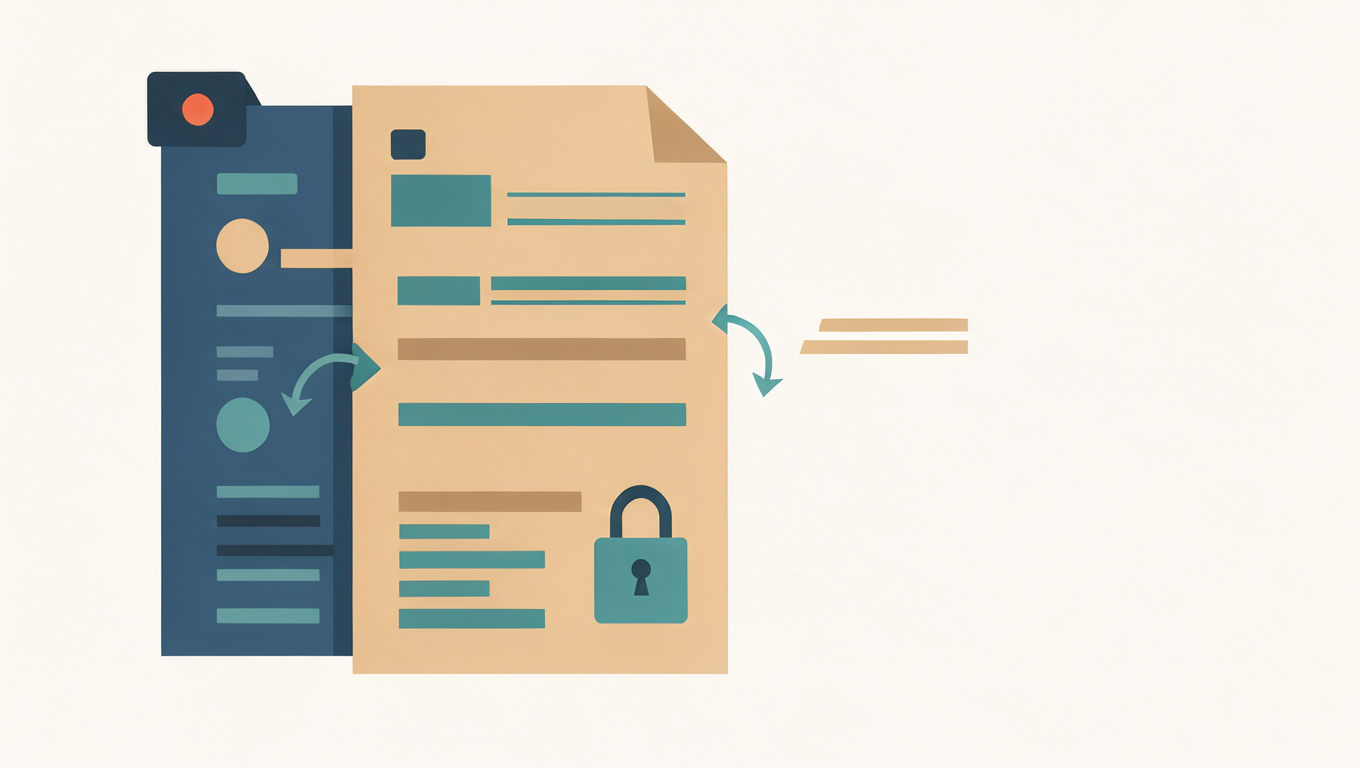
How to Delete Blank Pages from a PDF
A PDF full of empty pages is awkward to read and awkward to print. The pages are rarely a mistake in the file itself. They usually come from the document that produced it, or from the scanner that captured it. Removing them is simple, but the check afterwards is what stops you deleting something that mattered.
The PDF Editor lets you delete pages and download the result, and the work happens in your browser. This guide covers why blank pages appear and how to remove them without breaking the document.
Quick answer
Open the PDF in a page editor, find the empty pages in the thumbnail list, select them, and delete them before downloading. Confirm each page is truly empty rather than merely white-looking, because a page with a faint header, a page number, or an invisible layer is not blank. Recheck the page count and the numbering afterwards.
Why blank pages appear
Word processors insert a page break at the end of a section, and if the previous section ends near the foot of a page, the break creates an empty one. Scanners add a sheet for each pass of the feeder, and a misfeed or an end-of-batch sheet becomes a blank page. Some print-to-PDF drivers also add a trailing page.
These pages are not all the same. There is a difference between a page with nothing on it and a page whose content is white on white, or a page carrying a header and footer but no body text. The second kind will look blank in a thumbnail and still contain text you might want to keep.
Check before you delete
- Look at the thumbnail, not just the page number, and open a page before removing it.
- Select text on the suspect page, if the viewer allows it, to reveal hidden characters.
- Check whether the page carries a section heading or signature block that sits near the top.
- Note the original page count so you can confirm how many you removed.
A page that holds only a page number is usually safe to remove. A page that holds only a signature line is not, even though it looks empty.
Delete the pages, then check the result
Select the pages you want gone and delete them. The remaining pages close the gap, so page numbering shifts: if you remove page 7, the old page 8 becomes the new page 7. Anything that refers to a page number in the text, such as a table of contents or a cross-reference, now points to the wrong place.
Print a few pages or scroll the whole document afterwards. Confirm that no heading is orphaned at the top of a page and no section has lost its opening line because it began on the page you removed.
Preventing them next time
If the PDF comes from a word processor, check for manual page breaks and for an empty paragraph at the end of the document before exporting. If it comes from a scanner, check the feeder and set the end-of-batch behaviour rather than scanning a trailing sheet.
If you also need to fix pages that are upside down or out of order, read How to Reorder, Rotate, and Delete PDF Pages. For pages that are blank because they are the wrong way round, see How to Rotate a Scanned PDF and Keep It Readable.
Open PDF Editor, select the empty pages, delete them, and check the page count before you download the file.
Common questions
How do I remove blank pages from a PDF?
Open the file in a page editor, find the empty pages in the thumbnail list, select them, and delete them before downloading. Check each page first, because a page that looks blank can still carry a header, a page number, or a signature line worth keeping.
Why does my PDF have blank pages?
Word processors add a page break at the end of a section, and if the previous section ends near the foot of a page, the break creates an empty one. Scanners add a sheet per pass of the feeder, so a trailing or misfed sheet also arrives as a blank page.
Do page numbers change when I delete pages?
Yes. The remaining pages close the gap, so removing page 7 makes the old page 8 become the new page 7. Any table of contents or cross-reference that mentions a page number now points to the wrong place and needs checking.