
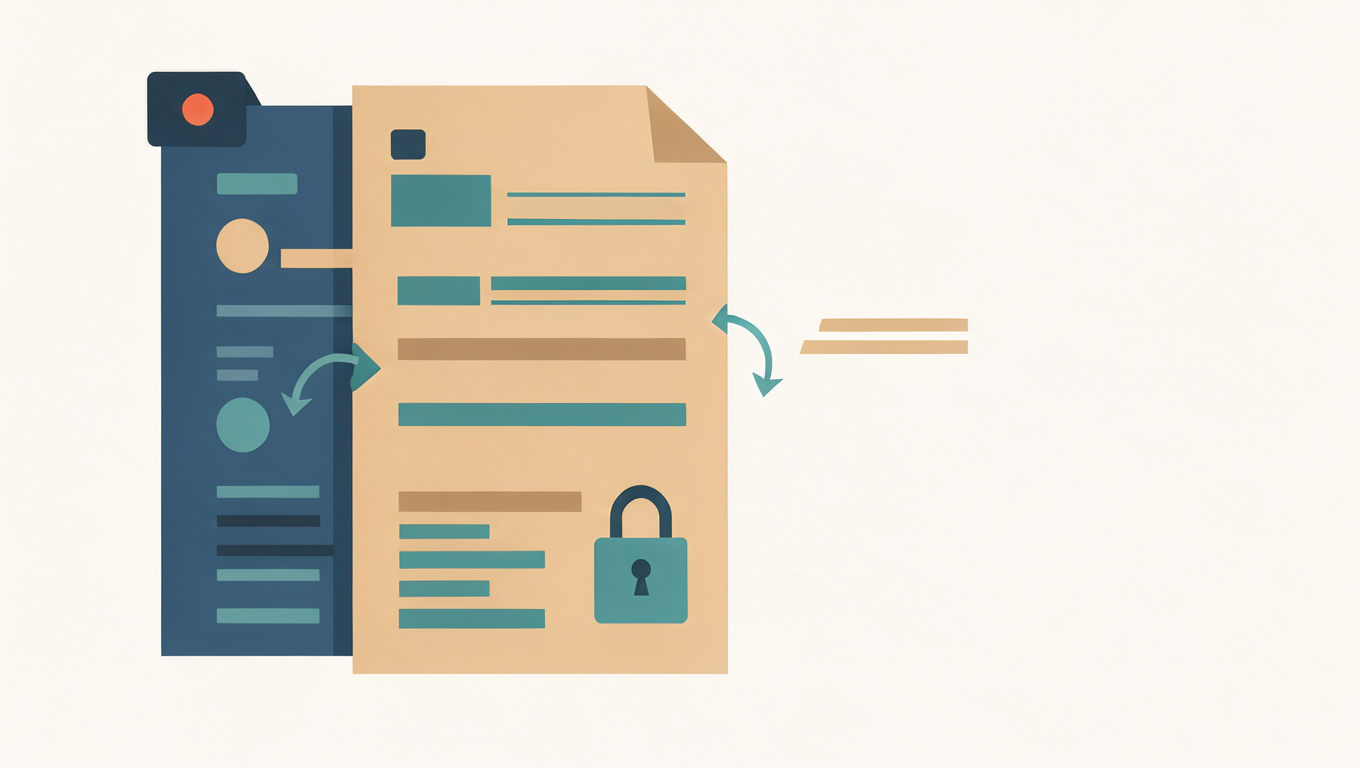
Merge PDFs Without Uploading Them
Quick answer
Merging PDFs in the browser reads the files on your device and never uploads them. You can test the claim by disconnecting from the network: a local merger still works, while an upload-based tool fails.
Most free PDF mergers work the same way. You upload the files, a server joins them, and you download the result. For a takeaway menu that is fine. For a signed contract, a transcript, a medical letter, or anything carrying an address and a date of birth, it means handing a copy of a private document to a company you have never heard of.
This page is about the other approach: merging PDFs in the browser, with no upload at all. The files are read by your own device, joined in memory, and returned as a download. There is no queue and no account.
Merge your PDFs in the browser — nothing is uploaded.
What “without uploading” actually means
A browser gives a page access to a file only after you choose it, and only while the tab is open. A merger that runs in the page reads the file through that permission, joins the pages in memory, and builds the download locally. No network request carries the document.
The simplest way to check any tool that makes this claim is to disconnect. Load the page, turn off Wi-Fi or unplug the network cable, and try to merge. A tool that uploads will fail immediately. A tool that runs in the page will finish, because the work never needed the network in the first place.
How to merge them
- Open the Merge PDF tool.
- Choose two or more PDFs, or drag them onto the box.
- Check the number beside each file. That is its position in the finished document, and the arrows move it.
- Press Merge the files, then download the result.
The order matters more than it looks. A merge that silently reorders its inputs produces a document that looks entirely plausible and is quietly wrong, which is why the position numbers are worth ten seconds of your attention.
What it does well
- Text stays selectable. The pages are copied rather than redrawn, so the result is not a stack of pictures.
- No watermark and no account. The output is the document you asked for.
- Repeat merges are fast. The PDF engine is about 500 KB, fetched the first time and then kept by your browser.
- It works on a phone. The same page runs in a mobile browser, though very large files will be slower.
What it cannot do
- It cannot exceed your device’s memory. There is no fixed page limit, but a merge of several thousand pages may fail on a phone. If it does, merge in batches.
- It cannot open a password-protected file. Unlock those first; the merge never asks for a password.
- It does not shrink the result. The output is roughly the sum of its inputs. Compressing the pages is a different job.
- It cannot repair a damaged PDF. If a file will not open on its own, it will not merge cleanly either.
- Form fields and bookmarks may not survive. The pages will, but interactive elements are not guaranteed. Open the result and check before you send it.
When a server is the right answer
Not every document job can run in a tab, and pretending otherwise would be dishonest. Converting a Word file to PDF needs software a browser cannot reasonably carry, so that one tool does send the file to a server and deletes it when the conversion finishes. The page says so before you upload anything. Merging and splitting do not need that, which is why they run locally.
Questions
Is it safe to merge a bank statement this way?
That depends on the tool, not on the format. With a genuinely local merger the file never leaves the device. The disconnect test above is the check that does not require trusting anyone’s wording.
Does merging reduce quality?
The pages are copied, not re-rendered, so text and images are not recompressed by the merge itself. Always open the result and check the pages that matter; a document that opens is not the same as a document that is correct.
Is there a file size limit?
No limit is imposed by the page. The practical limit is the memory your browser will give it, which is generous on a desktop and much smaller on an older phone.
Can I merge PDFs on an iPhone or Android phone?
Yes. Choose the files from the browser rather than sharing them into an app. Large documents are better done on a computer.
Related
- Split a PDF into separate files — also in the browser.
- Convert Word to PDF — this one uses a server, and says so.
- Passport photo sizes by country
Common questions
How can I check that a PDF merger does not upload my file?
Load the page, disconnect from the network, and try to merge. A tool that runs in the browser will finish because the work never needed the network; a tool that uploads will fail immediately.
What can a browser-based merger not preserve?
Form fields, annotations, comments, bookmarks, internal links, document properties, and signatures do not survive a rebuild. The pages themselves are copied intact, with selectable text and the original images.
Is there a file size limit?
There is no server limit, but the merged document is held in browser memory. A very large scan can hit the tab's ceiling, especially on a phone. Split the job into smaller groups if it stalls.