
How to Make a Scanned PDF Searchable
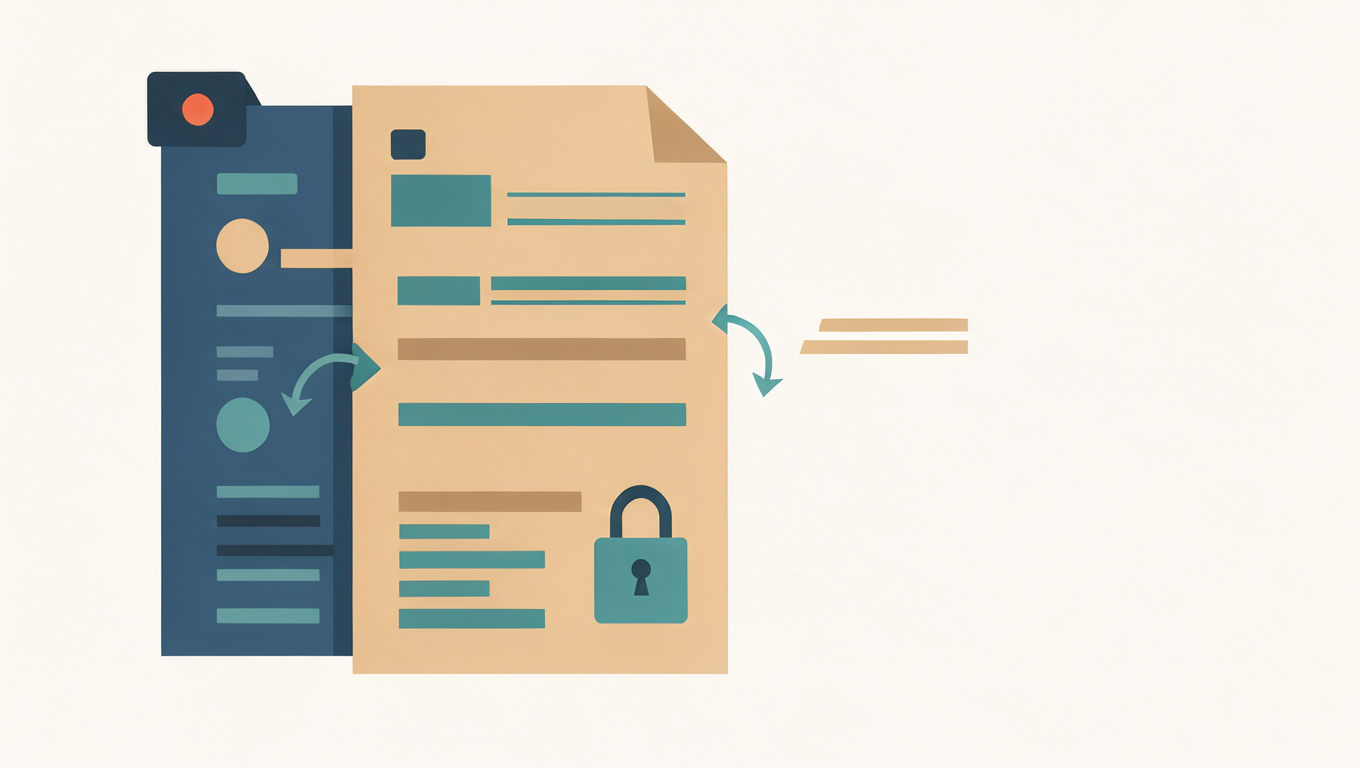
A scanned PDF is usually a set of page images wrapped in a PDF file. It looks right on screen, but the words are pixels rather than characters, so search finds nothing and text cannot be selected. Making the file searchable means running OCR on each page and storing the recognised words as a text layer behind the image.
Text from Image can recover the words from a page image in your browser, which is useful when you need the text itself. Adding a searchable layer to the PDF is a separate step, and the method depends on the software you use.
Quick answer
Run OCR with a scanner or PDF editor that offers a searchable PDF export. The page image stays in place and the recognised text is stored invisibly behind it, so search and selection work. If you only need the words, extract the text from each page image and keep the PDF unchanged.
What makes a scanned PDF different
A digital PDF made from a word processor contains characters, fonts, and layout instructions. A scanned PDF contains a picture of each page, often compressed as JPEG or JPEG 2000. The viewer displays the picture, which is why the page looks correct but cannot be searched.
OCR does not replace the picture. It analyses it, guesses the characters, and writes them into a hidden layer with coordinates that line up with the visible words. A good searchable PDF therefore looks the same as the scan but behaves like text.
Choose the right OCR route
Many scanner apps and PDF editors include an option labelled searchable PDF, OCR, or recognise text. Use that when the PDF itself must remain usable. Check that the export keeps the original page image and adds a text layer, rather than replacing the scan with a reconstructed layout that may lose stamps, signatures, or handwritten notes.
If you only need to quote or edit the words, export the pages as images and run them through Text from Image, then copy the result into your document. The tool runs in your browser; remove private details from the text before sharing it. That gives you text, not a searchable PDF, so choose the route that matches the job.
Improve the pages before recognition
The same capture rules apply whether the OCR runs on your computer or in a browser. Straight pages, even light, sharp focus, and enough pixels per character all raise accuracy. A page photographed at an angle or through a shadow will produce more errors, and the text layer will inherit them.
Check the searchable result
Open the exported PDF and search for a distinctive phrase from the middle of a page. Select a sentence and copy it into a plain-text editor. Then check a page with numbers, a table, or a stamp, because those are where the text layer is most likely to drift or misread.
Start with one page: run it through Text from Image to see whether the scan is clean enough for recognition, then use a searchable PDF export for the whole document. For the capture side, read How OCR Turns a Photo into Editable Text. If accuracy is the problem rather than the file format, see How to Improve OCR Accuracy: Lighting, Angle, and Resolution.
Common questions
Does OCR change how a scanned PDF looks?
A good searchable PDF keeps the original page image and adds an invisible text layer behind it, so the appearance does not change. If the export rebuilds the page, check that stamps, signatures, and layout still match the scan.
Why can I select text in some PDFs but not others?
A PDF made from a word processor contains real characters, while a scanned PDF contains page images. Selection only works when a text layer exists, which is why a scan needs OCR before it can be searched or copied.
Can the browser OCR tool add a text layer to my PDF?
No. It extracts text from an image of a page, which you can copy into another document. Making the PDF file itself searchable requires an OCR export that writes a text layer, usually in a scanner app or PDF editor.