
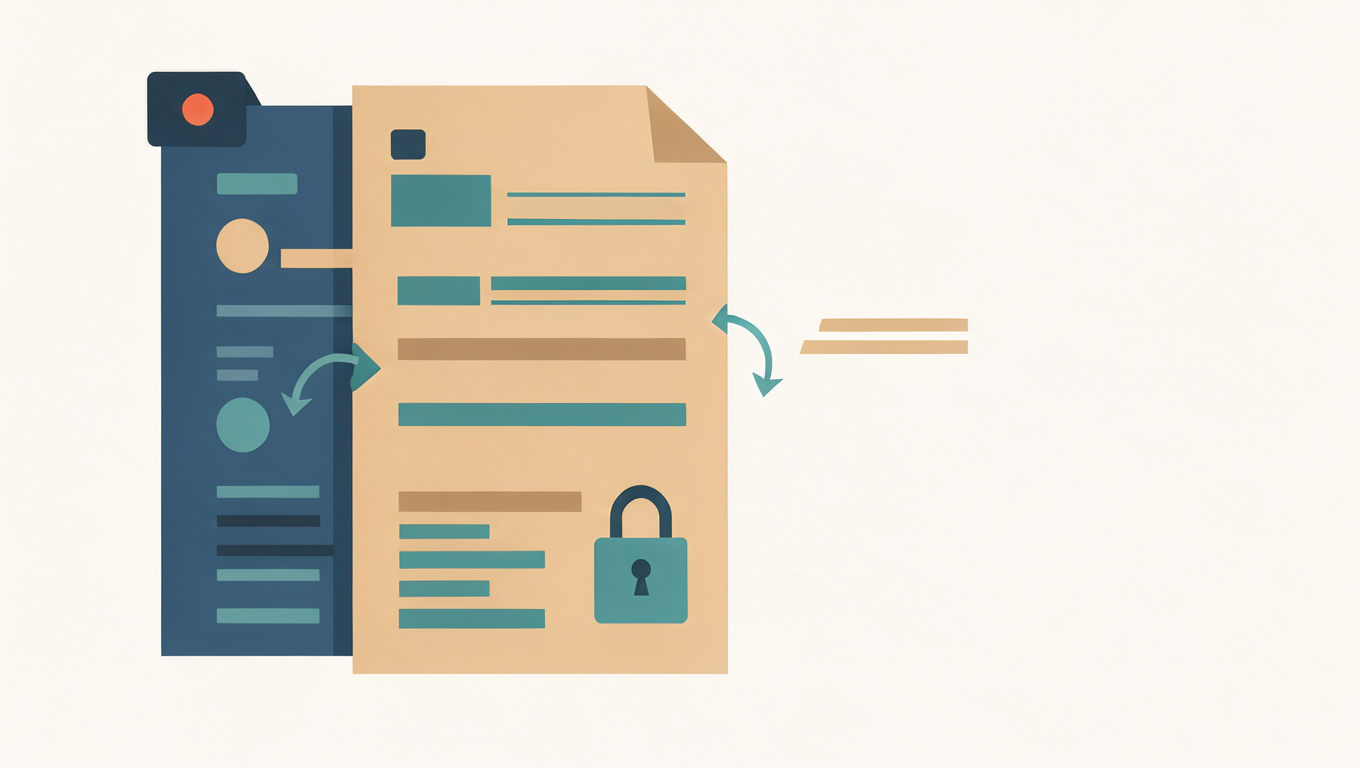
How to Split a PDF by Chapter or File Size
Splitting by chapter follows the document’s structure. Splitting by file size follows an upload limit or an email cap. They are different jobs, and a split that satisfies one may be useless for the other. Decide which constraint matters before you choose the ranges.
The Split PDF tool runs in the browser and can produce separate files by range, by single page, or by selected pages. A little planning saves a lot of renaming afterwards.
Quick answer
For chapters, start each range at the page where the chapter begins and end it on the page before the next chapter starts. For size, split at a sensible section boundary near the limit rather than at an arbitrary page, then check the actual file size. Name each output after its contents and keep the original.
Find the chapter boundaries
Use the contents page and the viewer, not the printed numbers. Note the first page of each chapter and the page before the next one. Front matter, appendices, and an index may need their own files. If a chapter opens with a part title or a blank page, decide whether that page belongs to the previous file or the next one and be consistent.
If the PDF has bookmarks, they often map directly to chapters. Open the bookmark panel and compare the targets with the page counter. A bookmark that points to a heading is a reliable boundary; a bookmark that points to the cover is not.
Split by size without breaking the text
File size is not spread evenly across pages. A chapter with photographs can be far larger than a chapter of text. Split near a section boundary, then check the size of each output. If one file is still over the limit, split that file again at the next natural boundary rather than cutting a paragraph in half.
Recompressing images inside the PDF can reduce size, but it changes quality and may not be available in a simple splitter. Splitting is the safer first step. If the limit is for email, remember that the attachment limit is usually lower than the mailbox limit, and the recipient may have a different cap.
Keep the parts usable
- Name files with the chapter number and a short title.
- Keep the same page order across the set.
- Check the first page of each file for a header that no longer applies.
- Keep a complete master copy.
A running header that says “Part 2” will still say it in a file that now contains only part of the chapter. That is a design issue rather than a splitting error, but it confuses readers. If the header matters, edit it before splitting or accept that the split is a working copy.
When one file is the better answer
If the recipient only needs one chapter, extract that range instead of splitting the whole book into a dozen files. Fewer files are easier to send and harder to misplace. Split the full document only when each part has a separate audience or a separate destination.
For extracting a single range, read How to Extract Pages from a PDF. For the general method, see How to Split a PDF into Separate Files or Page Ranges. Use the Split PDF tool, check every output, and keep the complete PDF until the set has been delivered.
Common questions
How do I split a PDF by chapter?
Find the page where each chapter starts, then split by page range using those starting points. A table of contents or the bookmarks panel usually gives the page numbers. Check the first page of each output to confirm the split landed on the chapter opening.
What if I need each part under a size limit?
Split by page range first, then check the size of each part. If a part is still too large, split it further at a sensible page boundary rather than at an arbitrary page number, so no section is broken in the middle. Reducing scanned page resolution is the other decisive lever.
Will splitting reduce the quality of the pages?
Splitting copies pages into new documents without re-encoding the content, so the pages are as sharp as the source. Quality only drops if the tool rasterises each page into an image, which can be checked by selecting text in the output.