
How to Blur Sensitive Information in a Screenshot
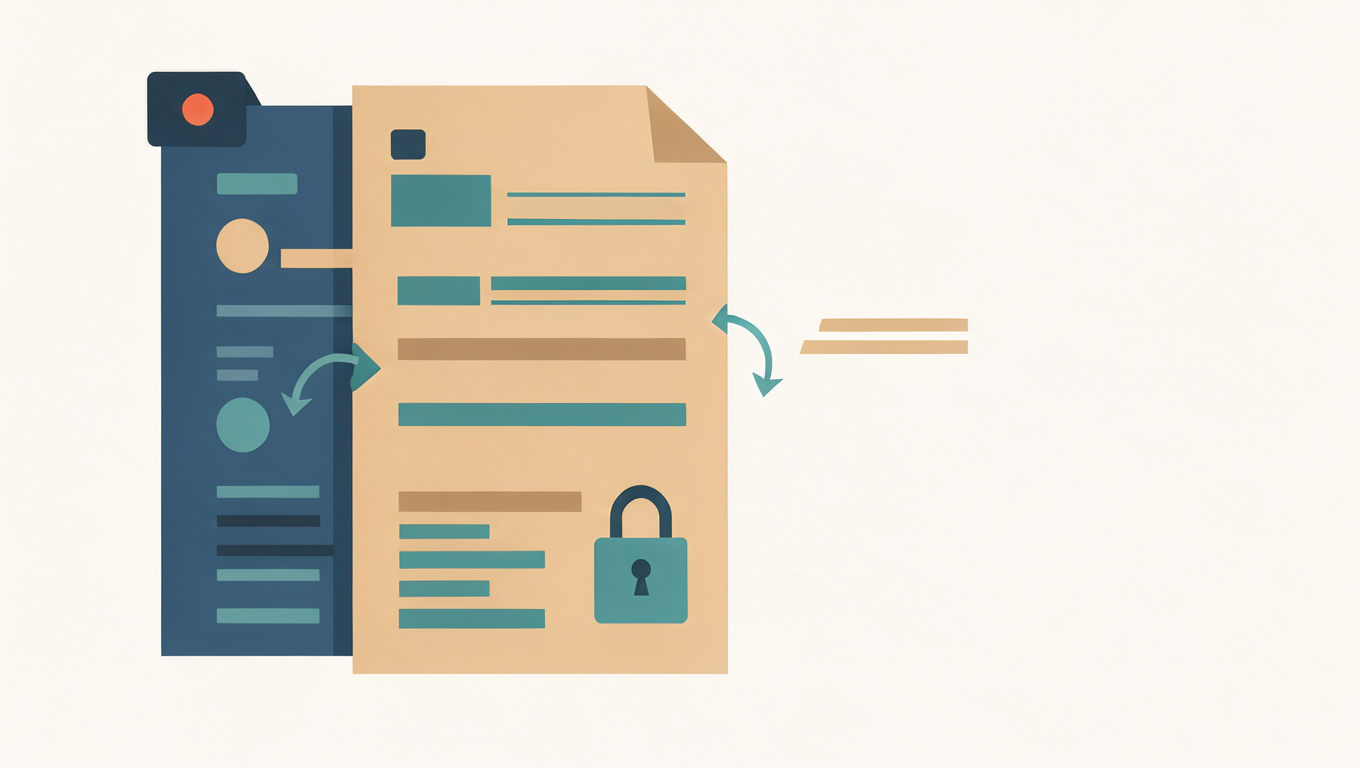
A screenshot captures the whole window, not just the part you meant to show. A notification can drop into frame, a sidebar can list client names, and the address bar can hold a search query or a session token. The result looks like a simple image, which is why it is easy to share without checking what else travelled with it.
Blur & Pixelate lets you paint over areas on a copy and download a PNG. The difficult part is not the painting. It is finding every detail that needs covering and checking the exported file rather than the preview.
Quick answer
List every sensitive detail before you edit, crop out what is not needed, and cover the rest with a strong blur, large-block pixelation, or a solid opaque block. Use an opaque block for text and numbers, because mild blur or pixelation can sometimes be reversed or partially recovered. Export a flattened PNG, reopen it at full size, strip metadata, and check the filename.
What a screenshot gives away
Start with the obvious: names, email addresses, phone numbers, account balances, order numbers, and anything in a message body. Then look at the edges. Browser tabs can show the titles of unrelated pages. The address bar can contain a search term, a customer number, or a token. The bookmarks bar can reveal internal tools. A notification banner can show a private message.
Why blur is weak on text
Text is high-contrast and predictable. A light blur turns letters into smudges but often leaves their shapes and lengths visible. Pixelation divides the area into blocks; if the blocks are small, the pattern of light and dark still carries enough information to guess a word or a number. Mild blur or pixelation can sometimes be reversed or partially recovered with the right tools.
That is why an opaque block is the safer choice for text and numbers. It replaces the pixels rather than blending them. Use a block that covers the whole detail and a little of the surrounding area, so no edge of a letter survives outside it. If you want the softer look of a blur, use the strongest setting and inspect the result at full size.
A safe workflow
- Work on a copy and keep the unedited screenshot private.
- Crop first. If a detail is not needed, remove it rather than covering it.
- Make a list of every sensitive area, including tabs, sidebars, and notifications.
- Cover each area with a brush larger than the detail, and overlap the edges.
- Use PNG for export; JPEG compression can reintroduce artefacts around text.
- Reopen the exported file at 100% and check it again.
Do not judge the result from a thumbnail or from the editor preview. A face or a number that looks hidden at small size can be clear on a larger screen. Zoom in on every covered area and look for fragments at the boundary.
Metadata and the rest of the file
Blurring changes pixels, not necessarily the file around them. A screenshot may carry device details or timestamps, and the filename can contain a person or project name. Use a tool that rewrites the file and strips metadata, or open the export in a cleaner that removes it. Rename the file before sharing it.
The Blur & Pixelate tool runs in your browser, but the exported image is still an ordinary file that can be forwarded, copied, or posted elsewhere. Remove private details before you share it, and keep the unedited original out of shared folders.
For the general method, read How to Blur a Face, Plate Number, or Address in a Photo. For the difference between blur, pixelation, and a solid block, see Blur, Pixelate, or Black Box: Which Redaction Is Safe?.
Common questions
Is a blurred screenshot really safe to share?
Only if the blur is strong enough that the underlying characters cannot be recovered. A light blur can sometimes be reversed with image processing, especially on text. For account numbers, addresses, and passwords, cover the area with a solid block instead of a soft blur.
What should I hide before posting a screenshot?
Names, email addresses, phone numbers, account or order numbers, file paths that contain your name, browser tabs and bookmarks, notification popups, and any partial address. Check the whole frame, including the edges, rather than only the part you were looking at.
Does blurring remove the information from the file?
Blurring changes the visible pixels in the area you painted, so the hidden text is no longer there to read. Other details elsewhere in the image remain, and any file metadata is separate from the picture. If the original matters, keep it and share only the edited copy.